



Your Google Account may hold the email you use for school, work, phone backups and password resets. Protecting it is worth a few minutes, especially if losing access would also lock you out of other services.
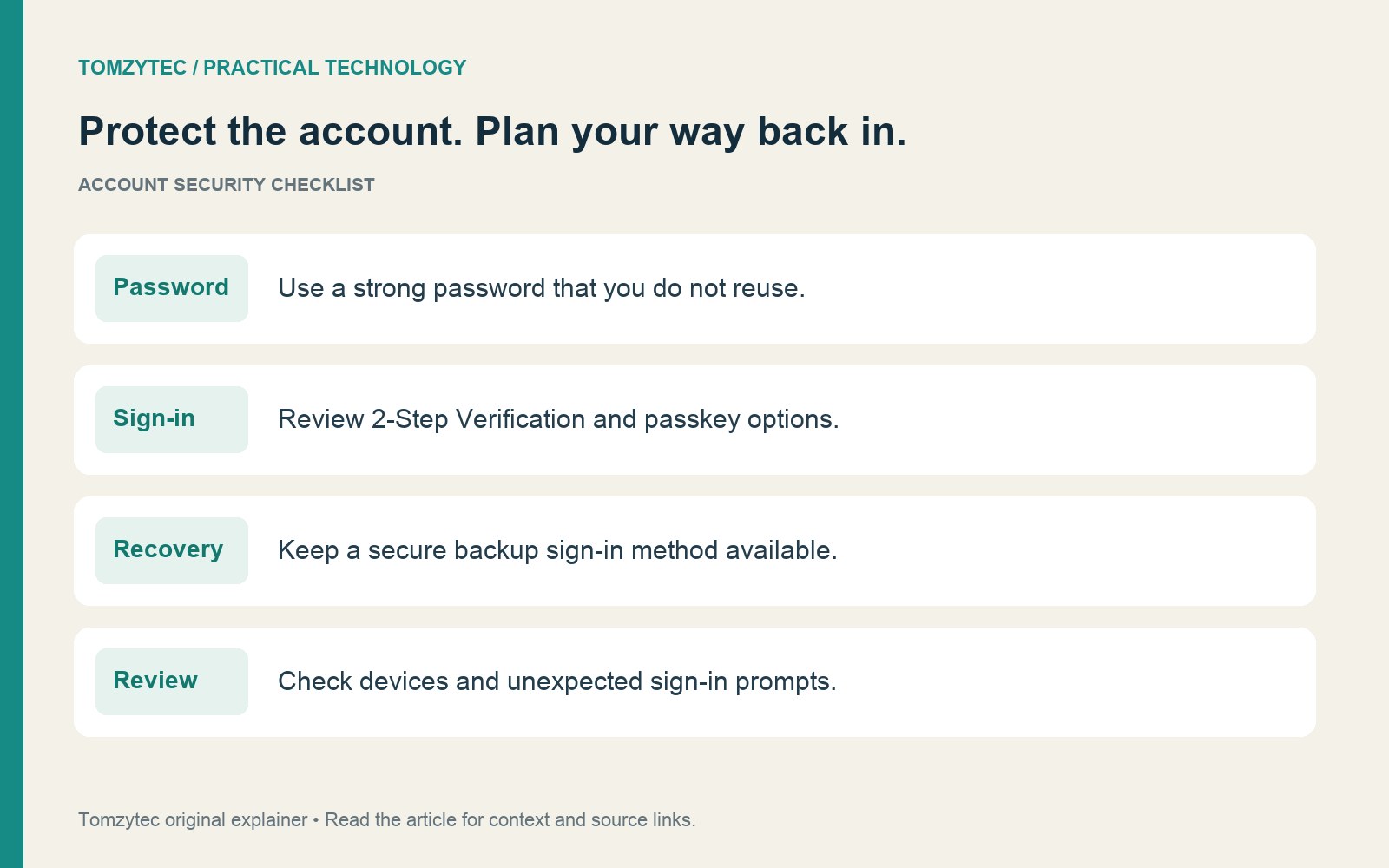
To secure your Google Account, use a unique password, review your sign-in methods, turn on 2-Step Verification where appropriate, and prepare a backup way to sign in. The practical goal is to make unauthorised access harder while keeping a recovery route you can actually use.
1. Start from your account settings
Open your Google Account from a Google app you already use or type the official account address into your browser. Avoid starting from an unexpected message that says your account will be closed unless you act immediately. Pause and check the situation through your normal account route.
Review the account email address first, particularly if several people use the same device or you switch between personal and work accounts. A security change on the wrong account will not protect the one you intended to check.
2. Use a password you do not reuse
Choose a strong, unique password and keep it in a reputable password manager if that suits you. Reusing one password across email, shopping and unfamiliar websites creates unnecessary dependence between those accounts. Do not share your email password with someone who only needs a document or photo.
For shared work, use the service’s normal sharing features and individual accounts where available. A small team should decide who owns important business accounts and how access will be recovered if a staff member leaves. Write down the process without putting passwords in a shared public document.
3. Review 2-Step Verification and passkeys
In your Google Account, open the security and sign-in section and review 2-Step Verification. Follow the setup offered for your account. Google’s 2-Step Verification guide explains sign-in prompts, passkeys and other methods. Passkeys can use a device’s fingerprint, face verification or screen lock.
Set up a passkey only on a device you control and protect with a secure screen lock. Work or school accounts may have administrator rules, so follow your organisation’s instructions when an option differs or is unavailable. Do not switch off an existing protection simply to make an unfamiliar instruction match your screen.
4. Prepare for losing access to your phone
Consider the awkward case before it happens: your phone is lost, damaged or unavailable. Which sign-in option would still work? Depending on your setup, Google lists options such as saved backup codes, a security key or a passkey on another device in its verification troubleshooting guide.
If you create backup codes, store them securely somewhere that does not depend entirely on the phone you might lose. Treat them like credentials. Do not send them to anyone claiming to be support, and do not put them in a portfolio screenshot or group chat.
Before changing phones, confirm that you can use the new device for the sign-in methods you rely on. Keep the old device until the transfer is checked. Our Android phone backup checklist covers the checks to make before retiring your old device.
5. Make security checks part of your routine
Review the devices and account connections shown in your security settings. Investigate entries you do not recognise; a device name alone may be unclear, so check the details before deciding what it represents. If you suspect account compromise, use Google’s official recovery and security guidance from a device you trust.
For everyday use, question unexpected requests for verification codes or sign-in approval. If a prompt appears when you are not trying to sign in, do not approve it just to make it disappear. Check your account through your usual route.
Final thoughts
A secure account needs both protection and a workable recovery plan. Finish by asking yourself two questions: can someone get in using a password leaked elsewhere, and can I still get in if this phone disappears? Use those answers to decide what needs attention next.







2 Comments