

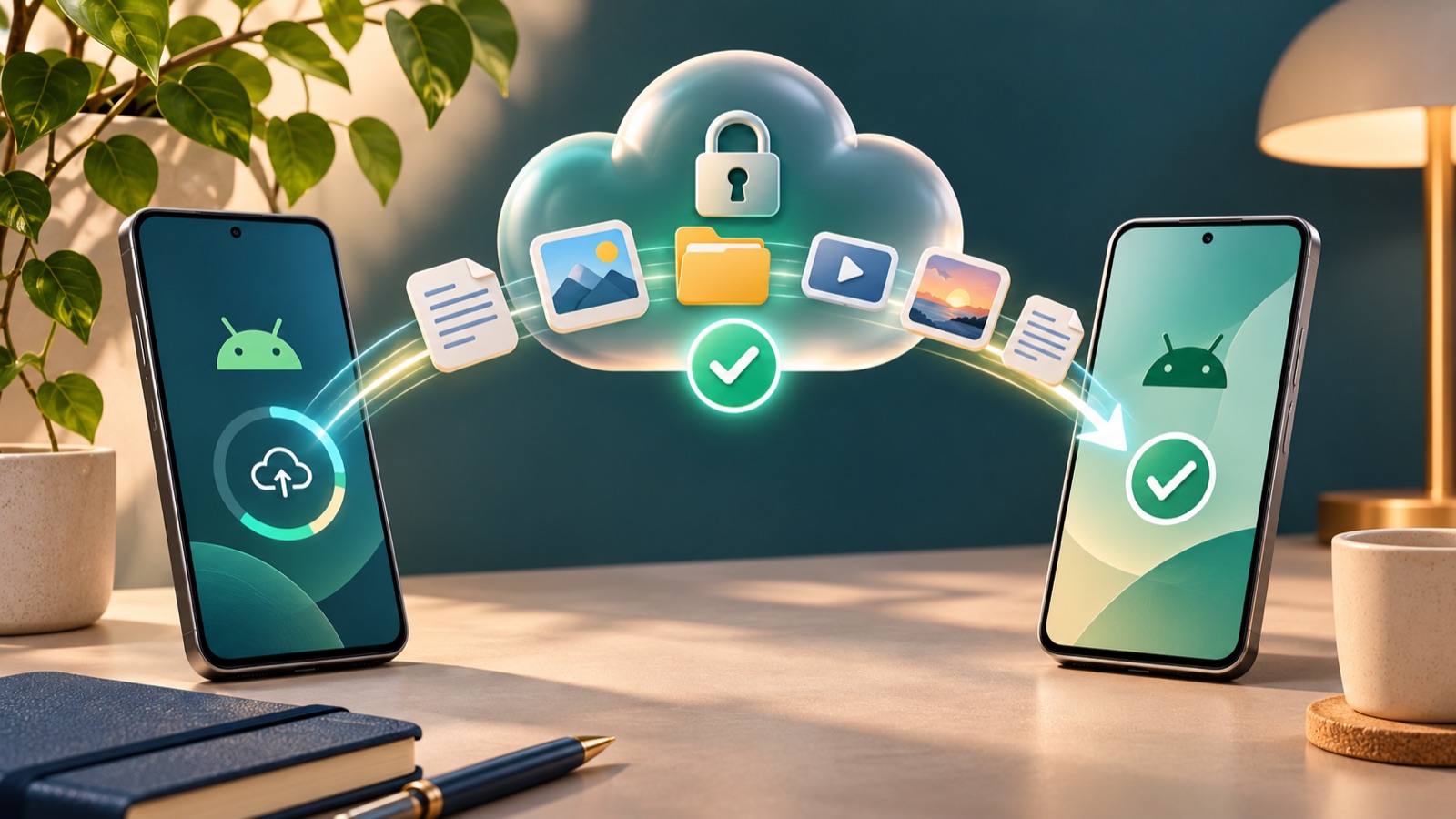

Changing your Android phone should not mean losing your lecture notes, customer contacts or family photos. The safest approach is to check what has been backed up, copy the files that need separate attention, and test the new phone before wiping the old one.
To back up an Android phone before changing devices, review Google backup, photos, local documents and each important app separately. A single Backup complete message should not be treated as proof that every app and file is covered.
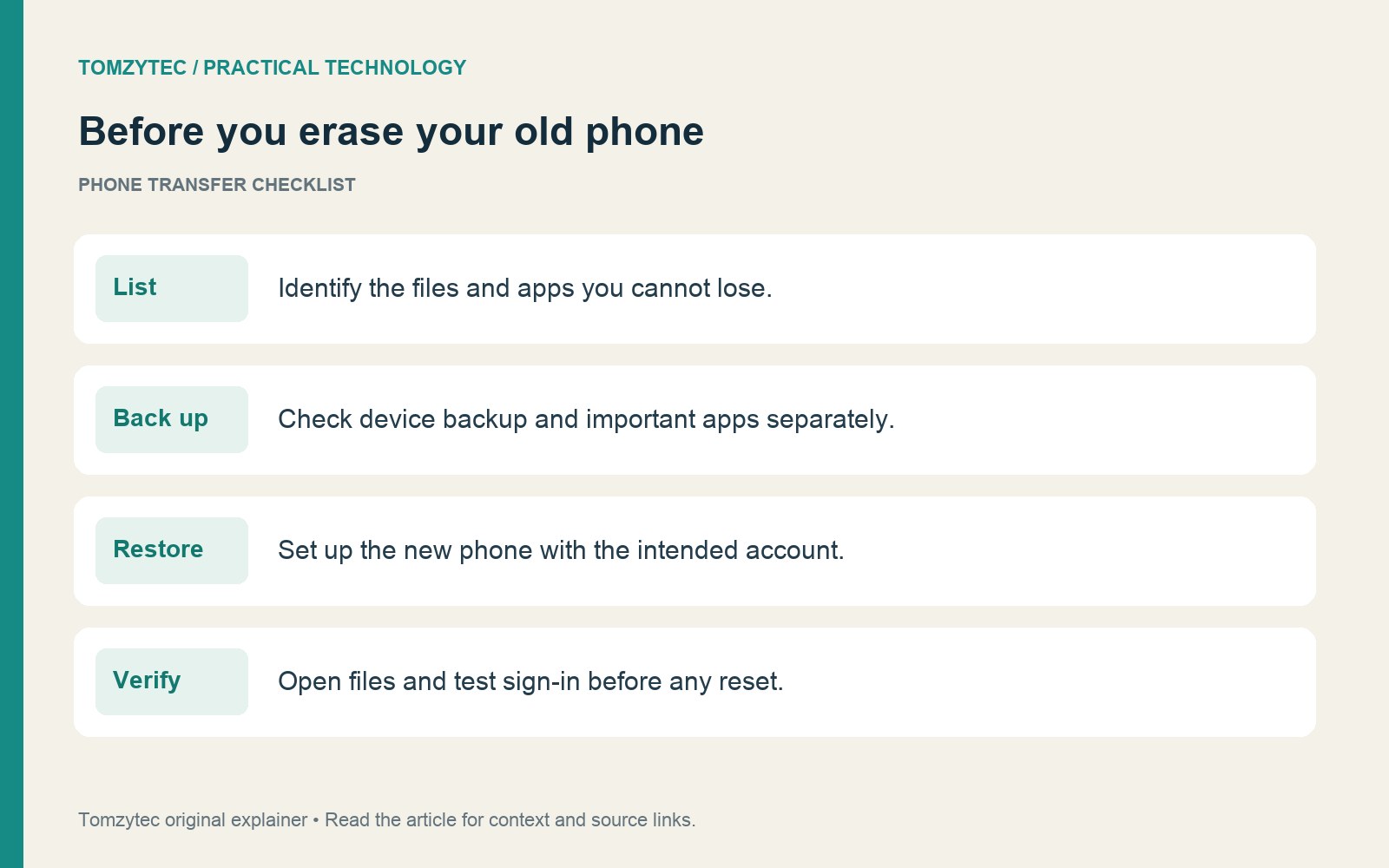
1. Make a short list of what you need
Think about a normal week with your phone. Which items would stop your work if they disappeared? Write down contacts, messages, school documents, photos, voice recordings and the apps you cannot do without. Include anything stored on a memory card.
For a small-business owner, that list might include customer contacts, invoices and product pictures. For a student, it might be coursework, recordings and admission documents. Use your own list as a final acceptance checklist when the new phone is ready.
2. Check Android’s device backup
Open Settings and search for Backup. Check the Google Account, the data categories included and the most recent backup status. If the phone offers Back up now, use it while connected to a suitable network and power source. Wait for completion rather than assuming that tapping the button finishes the job.
Google’s official Android backup guide explains that restoration depends on the phone and Android version. Some apps do not back up or restore all their data. A backup from a newer Android version cannot be restored onto a phone running an older version.
Check available account storage before starting a large backup. If the process reports a storage or network problem, resolve it and check the status again. Do not count a failed or incomplete attempt as a usable backup.
3. Check photos and documents separately
For photos, confirm the correct account is selected and review which device folders are included. Camera photos and images downloaded by another app may be in different folders. Open a few important backed-up images from another device to confirm that you can access them.
Copy documents you need to a trusted computer or appropriate cloud folder. Give the folder a useful name, such as Phone documents before transfer, and check the contents. A copy that cannot be opened is not a reassuring backup. Keep confidential work documents within your organisation’s approved services.
4. Review messaging and sign-in apps
Open the backup or transfer instructions for each messaging app you rely on. Check its own account requirements and the date of its latest backup. Do not assume the Android device backup automatically covers every conversation, attachment or account setting.
Also prepare for signing in again. Make sure you know your account passwords and can use your existing verification methods. Review the transfer instructions for any authenticator app before retiring the old device. Keep recovery information somewhere you can reach without that phone.
5. Set up the new phone before wiping the old one
Follow the new phone’s setup and transfer prompts, choosing the intended account and backup. Keep the old phone available while you check the result. Give restored apps time to finish installing before deciding that something has gone missing.
Work through your checklist: open important files, confirm contacts, check recent messages and sign in to essential apps. Test the tasks you actually do, such as opening an assignment or finding a customer’s details. A familiar wallpaper alone does not prove the transfer is complete.
When should you erase the old phone?
Wait until the new phone works for your important tasks and you have another verified copy of irreplaceable files. Before selling or giving it away, follow the manufacturer’s instructions for account removal and factory reset. Do not hand over a phone that still exposes your personal information.
If a backup is difficult because the phone is full, use our Android storage guide to review unnecessary files. Avoid deleting the very files you are trying to protect just to make room for the transfer.
Final thoughts
A good phone transfer ends with verification. Back up, copy, restore and check your real tasks before you erase anything. That extra check is usually more useful than rushing through setup and discovering a missing file after the old phone is gone.







3 Comments