



A storage-full warning always seems to appear when you need your phone most: recording a class, downloading a document or installing an update. Before you start deleting everything, check what is actually taking up the space.
To free up space on an Android phone, start with unnecessary downloads and offline videos, review unused apps, and back up important files before removing local copies. Clearing an app’s cache can help, but clearing its storage is a different action.
This guide suits everyday Android users, including students and small-business owners in Nigeria. Menu names differ across Samsung, Tecno, Infinix, Xiaomi and other phones, so use the search box in Settings when a label looks different.
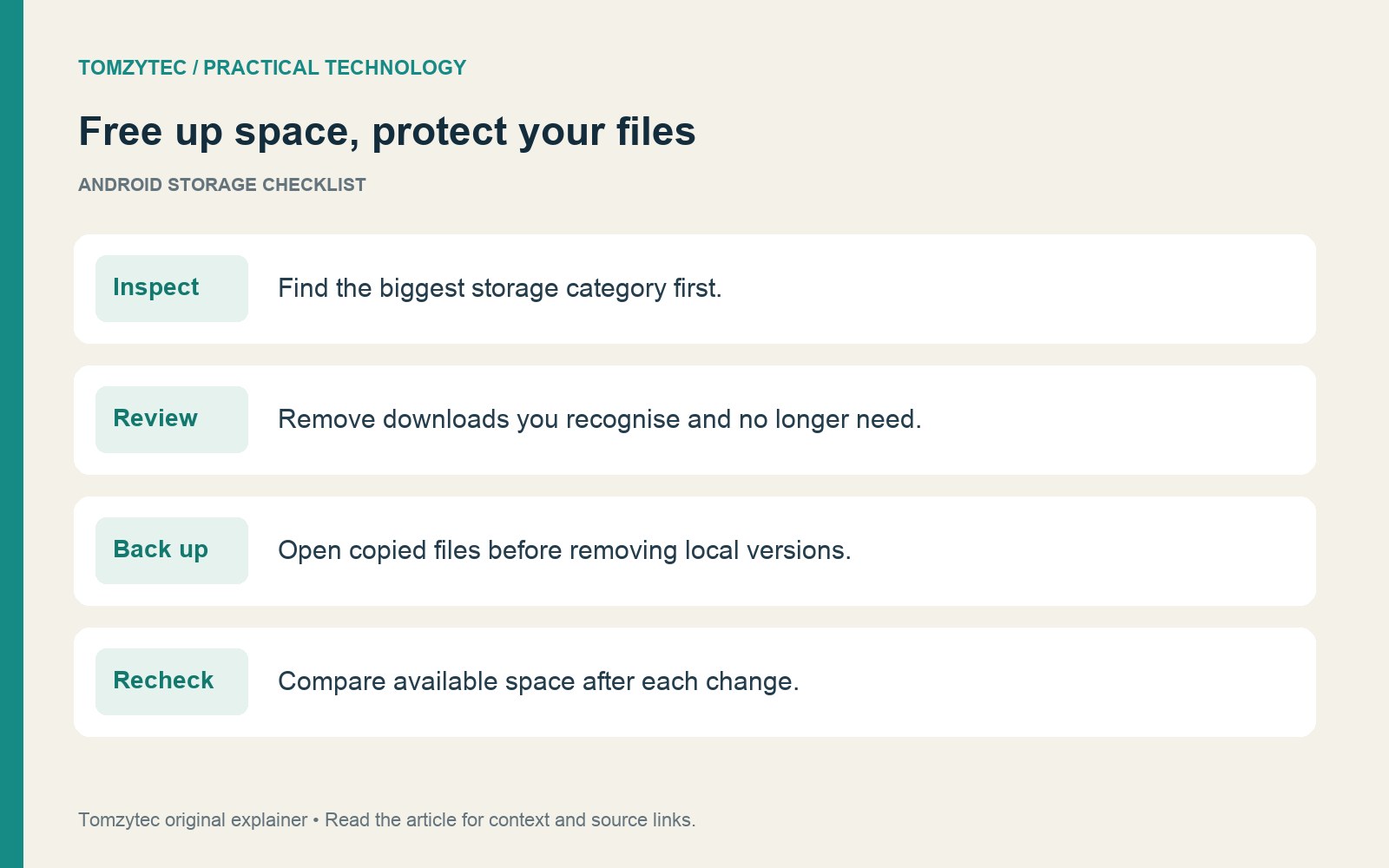
1. Find the biggest storage problem first
Open Settings and search for Storage. Look at the categories rather than guessing. If videos are the biggest category, removing a few small screenshots will barely change the situation. If apps dominate, check the largest apps individually.
Write down your available space before you begin. After each cleanup, check it again. This simple comparison helps you stop repeating tasks that recover almost nothing. Google’s storage guide for Pixel phones explains the distinction between storage for files and memory used to run apps.
2. Review downloads and offline entertainment
Start with files you recognise: old lecture recordings, duplicate PDFs, installation files and videos you no longer need. Open unfamiliar documents before removing them. A file with an unhelpful name may still be an important receipt or assignment.
Check the apps you use for downloaded music and videos too. Remove offline downloads through the app that created them. Keep a small offline collection that you actually use, especially if buying data to download everything again would be inconvenient.
3. Understand clear cache versus clear storage
On many phones, the route is Settings, Apps, the app name, then Storage or Storage and cache. Clear cache removes temporary data. Clear storage removes the app’s data and can require you to set it up again. Do not treat the two buttons as interchangeable.
A cache can grow again during normal use. If clearing it recovers space today but the warning returns tomorrow, review what you save and download instead of making cache clearing a daily ritual. Avoid experimenting with Clear storage on messaging or work apps when you have not checked their backup options.
4. Verify photos are backed up before removing copies
For irreplaceable photos, confirm the backup is complete and open several backed-up items from another device or browser before you remove local copies. Copying important files to a computer is another option. Check that the copied files open properly.
Be careful with the ordinary delete button in Google Photos: Google explains that deleting backed-up items can also remove them from devices with backup enabled. Use the app’s device-only removal option when your intention is to keep the cloud copy. Read its confirmation carefully.
5. Keep a small storage routine
Once a week, review your Downloads folder and remove finished offline videos. Before a trip or an event, make room for new recordings. For school or business documents, use clearly named folders so you can identify what must stay.
If you are comparing a replacement phone, our guide to phones under ₦150,000 in Nigeria offers a starting point; confirm current prices and the exact storage variant before buying. More storage is useful, but it cannot replace an organised backup habit.
Will clearing storage make my phone faster?
Freeing space can help a phone that is running short of room, but it does not upgrade its processor or RAM. If the phone remains slow after cleanup, investigate the particular app, software updates and the device’s condition rather than expecting a guaranteed speed boost.
Final thoughts
Start with the largest files you understand, protect what matters, and check the result after each step. The goal is enough working space for your daily tasks without losing documents, photos or app data you still need.








2 Comments