



To reduce mobile data usage on Android, check your highest-usage apps, enable Data Saver, lower unnecessary video quality and move large downloads to a suitable Wi-Fi connection. Keep essential messaging apps working, and compare your phone’s readings with your network’s balance for the same period.
If your bundle keeps finishing early, start with those checks before buying a larger plan. This guide is written for Nigerian Android users on networks such as MTN, Airtel, Glo and 9mobile. The controls are mainly on your phone; they do not change your operator’s bundle allowance or expiry date.
Checked: 8 November 2026. Settings names vary by phone and Android version. The genuine AOSP screenshots below illustrate the controls in an older reference interface, rather than claiming to show a current Tecno, Infinix or Samsung model.
Table of Contents
Quick checks before changing your settings
- Confirm which SIM supplies mobile data on a dual-SIM phone.
- Note your bundle’s remaining allowance and expiry in the operator’s official service.
- Match the date range in Android’s usage report to the period you are investigating.
- Check whether a laptop, tablet or another phone is connected to your hotspot.
A usage allowance and a validity period are different things. For example, a seven-day bundle can run out before day seven if its data allowance is consumed. Equally, having some allowance left does not necessarily extend its expiry. Check the terms of your particular plan.
7 ways to reduce mobile data usage on Android
1. Find the apps using your bundle
Open Settings and search for data usage or app data usage. Select the relevant SIM and review the largest app totals. Start with the top two or three entries, rather than changing every app on your phone.
On a Pixel, Google’s documented route is Settings → Network & internet → SIMs → App data usage. On Galaxy phones, Samsung points users to Settings → Connections → Data usage. If the labels differ, search Settings or consult your manufacturer instead of forcing a menu path that is not present.
Look for a connection between the figures and what you actually did. A long video lesson may explain high foreground usage; a large backup may explain activity when the screen was off. Record the date and the largest apps so you have a useful comparison after making changes.
2. Turn on Data Saver and choose exceptions
Search Settings for Data Saver, then enable it. On supported Galaxy phones, the route is Settings → Connections → Data usage → Data saver. Review the option for apps allowed to use data while Data Saver is on.
Android’s official Data Saver documentation explains that the feature restricts background usage on metered networks and asks apps to reduce foreground use where possible. An app you are actively using can still transfer data: this is not an internet-off switch.
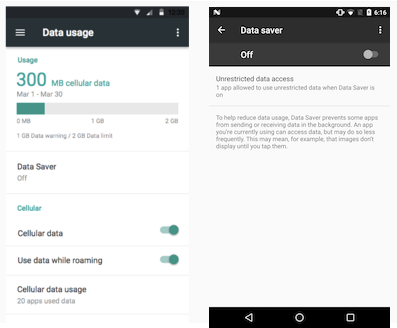
If you want to reduce mobile data usage on Android without missing work messages, allow only the apps that genuinely need background access. Send a test message from another device after changing an important app’s settings. Undo the restriction if it interferes with the way you need that app to work.
3. Restrict background data selectively
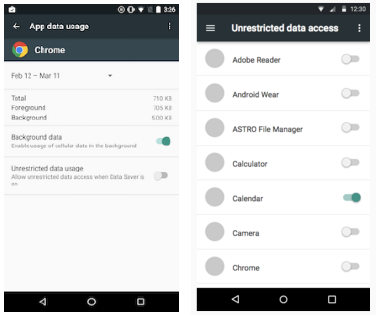
To reduce mobile data usage on Android for a particularly heavy app, open its app-info or data-usage screen and review the background-data control. A restriction may delay refreshing until you open the app. Read the explanation before changing it.
Be selective with messaging, navigation and other time-sensitive tools. A social feed you check twice a day has different requirements from the app used for urgent customer enquiries. The aim is to reduce unnecessary transfers while keeping your normal tasks dependable.
4. Lower video quality and review media downloads
Video settings are often a useful place to start. In YouTube, open your profile, then Settings → Video quality preferences and choose Data saver for mobile networks. For an individual video, use the player’s quality control. YouTube’s official quality guide explains the available options.
Check the result on the content you actually watch. Lower quality can be fine for a spoken discussion, but small text in a coding lesson may become unreadable. Increase it for that lesson when necessary rather than choosing a setting that makes learning frustrating.
In WhatsApp, review Settings → Storage and data → Media auto-download. Under mobile-data downloads, deselect media types you prefer to fetch manually. The NCC’s data-management guidance recommends reviewing automatic downloads. Also inspect autoplay and data-saving options in the social apps you use most.
5. Schedule app updates and backups
In Google Play, open your profile picture, then Settings → Network preferences → Auto-update apps. Choose Update over Wi-Fi only if that suits your connection and budget. Review download preferences separately before starting a large installation.
Google notes that certain critical security updates can happen regardless of these preferences. Do not leave updates pending indefinitely. Set aside a regular time on a trusted connection to keep your apps current.
Check photo-backup and messaging-backup settings inside the relevant app too. Before a large upload, confirm which connection it will use. If you are changing devices, our Android backup checklist explains how to verify important data before erasing the old phone.
6. Check devices using your hotspot
A phone sharing its internet connection is also supplying the connected devices. A laptop can use that allowance for updates, cloud synchronisation or streaming. Review connected devices, disconnect anything you do not recognise and turn off the hotspot when you have finished.
MTN’s data-management help lists hotspot sharing, background uploads and media activity among things to investigate when data disappears quickly. That is a starting point for troubleshooting, rather than proof that every disputed deduction is explained by an app.
Before a long hotspot session, check the laptop’s pending transfers. Pause nonessential downloads through their normal controls and resume them on a suitable connection. Checking hotspot clients can help you reduce mobile data usage on Android when a laptop, rather than the phone itself, is doing the downloading.
7. Set a warning before your bundle runs out
Search Settings for Data warning & limit. Set a warning below the allowance you want to monitor, using the correct units and date period. A warning gives you time to investigate; a hard limit can switch off mobile data and interrupt a task.
For example, if you choose to monitor 5 GB over a particular period, a warning at 4 GB leaves room to respond. This is an illustrative threshold, not a recommended plan size or a guarantee that Android and your network will report identical totals. See Google’s usage and limit instructions for the distinction.
What to do if your data still finishes quickly
When you try to reduce mobile data usage on Android, compare the next few days with the earlier record. Look at similar activities and matching dates. A day of video calls cannot fairly be compared with a day spent mostly offline.
- If use is high overnight, review backups, automatic updates and hotspot connections.
- If one app dominates, review that app’s media quality and downloads first.
- If notifications stop, check Data Saver exceptions and background restrictions.
- If the phone and operator disagree, check the SIM, date range, units and bundle expiry.
Google explains that operators may measure usage differently from the phone. Keep screenshots of your balance, subscription time and device report if you need to raise a query. Contact your operator through its official support channel and describe the discrepancy; do not share passwords or verification codes.
Frequently asked questions
What is the quickest way to reduce mobile data usage on Android?
Identify the largest app in your usage report, then adjust the setting that matches its activity. Data Saver is useful for background transfers, while a video-heavy app may need a quality change. There is no single setting that guarantees the same saving for everyone.
Does 5G always use more data than 4G?
A faster connection can let apps deliver higher-quality content or complete more transfers in the same time. Do not assume the network label alone explains your bill. Compare the content, quality settings and activity behind the usage, then check your operator’s records if the totals still seem wrong.
Will clearing my cache save mobile data?
Cache clearing is a different maintenance task from managing a mobile-data allowance. Repeatedly clearing temporary files is not a substitute for reviewing downloads and streaming settings. If your issue is a full phone, use our Android storage guide to investigate that separately.
A simple routine you can repeat
To reduce mobile data usage on Android sustainably, check the biggest consumers, change a relevant setting and review the result. Keep essential apps working and update your plan when your routine changes. Useful records beat a promised percentage saving that has not been tested on your phone.
Image credits: Featured photograph by Roberto Hund on Pexels, used under the Pexels License and resized for the web. Screenshots reproduced unchanged from the Android Open Source Project, under the AOSP content license (Apache 2.0 for documentation; CC BY 4.0 for other site content). These images do not imply endorsement.




2 Comments